Sign In to Twala With eGovPH: Verified Once, Ready to Sign and Notarize

You can now sign in to Twala with eGovPH, the government’s super app. Choose Continue with eGovPH on Twala’s sign-in page, sign in as you do in eGovPH, and you’re in. For millions of Filipinos who already use eGovPH for government services, it is one less password to remember, and one less identity check to go through.
Why it matters: your identity is already verified
Every eGovPH account is identity-verified by eGovPH, with its own ID check and liveness selfie. When you sign in to Twala with eGovPH, that verification carries over: Twala records your identity as Verified through eGovPH, so you don’t verify again on Twala. If eGovPH doesn’t share what Twala’s identity record needs, such as your birth date or your selfie, you can still sign in, and you verify on Twala the usual way.
- No face scan and no ID photo. Your eGovPH profile already holds what Twala needs.
- No identity verification fee. Verifying on Twala the usual way has a fee; through eGovPH, it has none.
- Your name, from your government record. Your Twala account takes its name from eGovPH, and you can still edit it, as with any verified identity.
- Valid for three years, and renewed the next time you sign in with eGovPH after it lapses.
What a verified identity unlocks
On Twala, a current identity verification is what lets you:
- Get documents notarized. Request an appointment with an Electronic Notary Public, remote or in person, and sign at the session if your documents aren’t signed yet. Your verified details also seed the notary’s register entry.
- Book a lawyer. Request a consultation, get lawyer recommendations for your legal matter, or ask for free legal aid under ULAS.
- Sign envelopes that ask for a verified signer, and save the signature every notarization records.
- Apply as a lawyer or a notary, which both start from a verified identity.
How to sign in with eGovPH
- On Twala’s sign-in page, click Continue with eGovPH. eGovPH’s own sign-in window opens over the page.
- Enter your mobile number or email, the code eGovPH sends you, and your eGov PIN. These go to eGovPH, never to Twala.
- The first time, Twala asks you to confirm your email with a code. This links eGovPH to the Twala account that uses that email, or creates one if you’re new. You can type a different email if your Twala account uses another address.
- That’s it. Every later eGovPH sign-in takes you straight in.
If you turned on two-factor authentication for your Twala account, you’re still asked for your code: eGovPH sign-in never skips a protection you chose.
Privacy
Twala keeps only what it needs from your eGovPH profile: your name and the details your identity record holds, such as your birth date and address, and your eGovPH selfie as the record’s face capture. Your PIN and the codes eGovPH sends never reach Twala. As with every identity verification on Twala, your data is handled under the Data Privacy Act of 2012, and Twala never uses it to train AI.
What’s next
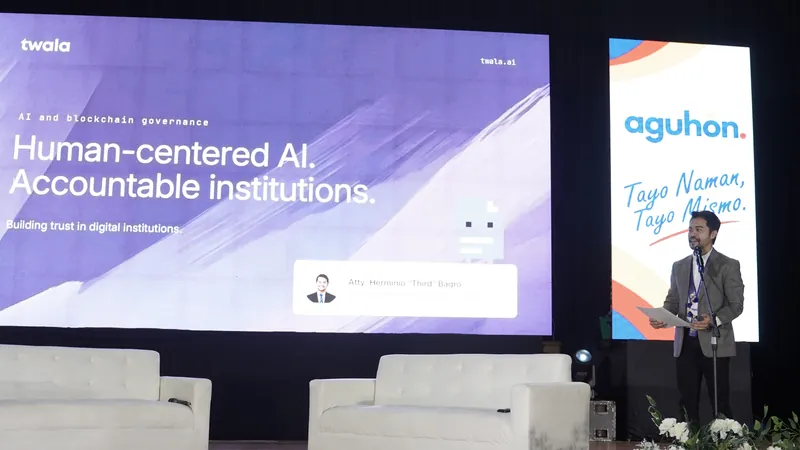
When Twala recorded the Philippines’ first two eNotarized documents, we said Twala would soon work with the eGov app. Signing in with eGovPH is the first step, and we’re working with the eGovPH team on the next one: opening Twala from inside the eGovPH app itself.
Ready to try it? Sign in to Twala and choose Continue with eGovPH, or read how to get your documents notarized.