AI Data Extraction: Turning Contracts and Notarized Documents Into Data

Twala’s AI data extraction reads a contract or a notarized document and returns the fields you ask for, each with a confidence level, ready to download as CSV or JSON.
Think of a property manager in Cebu City with a few hundred lease contracts in shared folders and one request from the owners: which leases end before June, and what is each tenant paying? The old way to answer means opening every PDF, finding the rent clause and the term, and typing both into a spreadsheet. It eats a week, and a typo on row 214 becomes a billing dispute in March.
Data extraction is built for that kind of job. You decide what to pull out, Twala reads the file, and you check the answers before they go anywhere.
How data extraction works
Extraction in Twala runs in three steps: Fields, Files, and Results. (The features page has the short version.)
1. Fields: say what you want
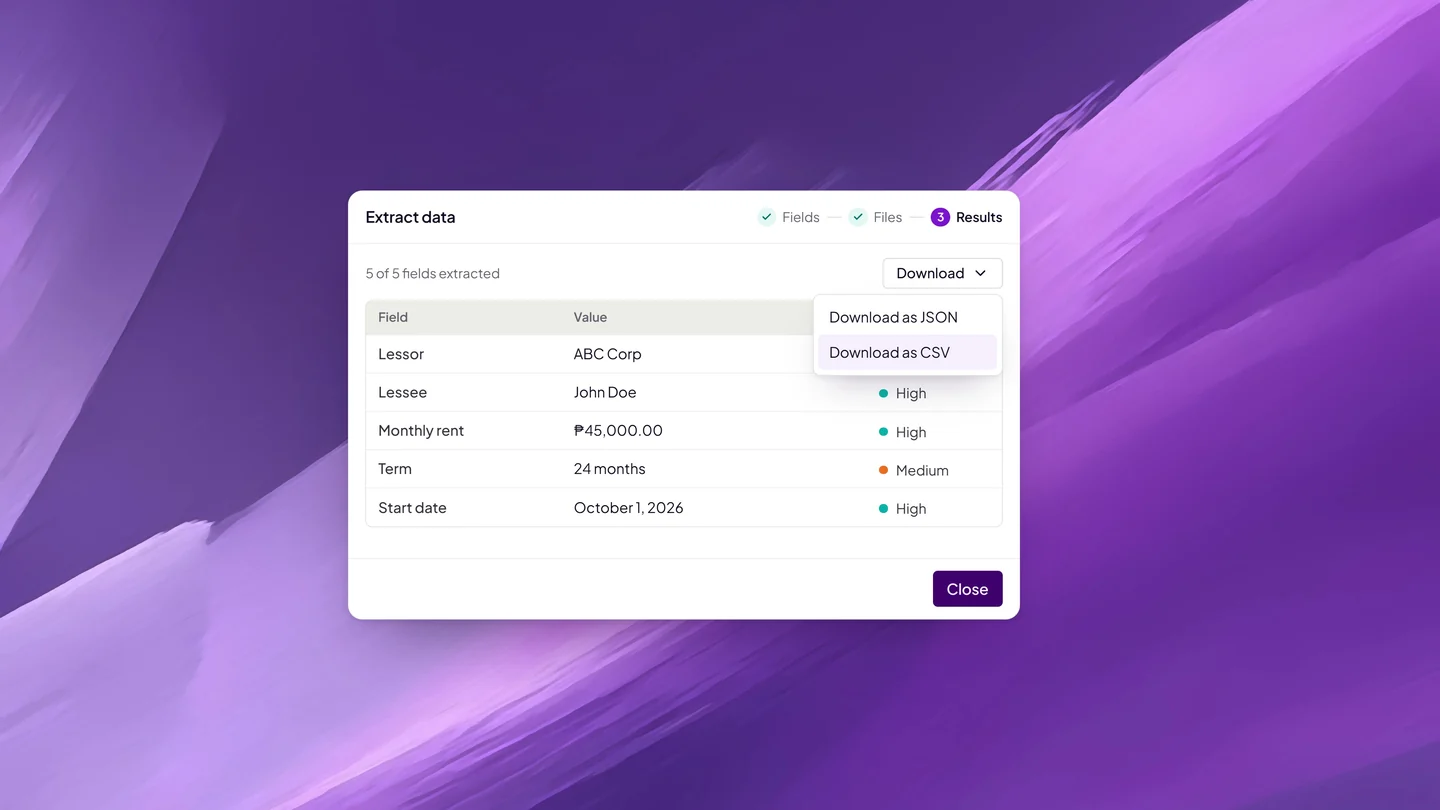
Add up to 30 fields and give each one a type: text, number, date, currency, yes or no, or a list. For a lease, that might be the lessor, the lessee, the monthly rent as currency, the term, and the start date. If you’ll pull the same fields again, save the set as a template and pick it next time.
Two additions help the AI land on the right value. A hint tells it where a value lives, such as “the monthly rent is in Section 4, not in the payment schedule.” A rule applies to the whole file, such as how dates are written.
2. Files: choose the document
Pick the file from your workspace. It can be a contract you uploaded, or a document that was signed or notarized on Twala and saved there.
3. Results: check before you download
Each value comes back marked High, Medium, or Low confidence, with the exact percentage when you hover over it. Read anything below High first. If a value is wrong, correct it right there in the results. Then download the table as CSV for a spreadsheet or JSON for another system. The extraction stays with the file, so you can come back to it later.
Field sets teams reuse
It helps to keep one template for each kind of document your team handles every week. A few to start from:
| Team | Document | Fields to extract |
|---|---|---|
| Property and admin | Lease agreements | Lessor, lessee, unit, monthly rent, start date, end date, escalation clause (yes or no), security deposit |
| Lending and cooperatives | Loan and credit agreements | Borrower, principal amount, interest rate, term, maturity date, collateral, co-maker (yes or no) |
| HR | Employment contracts | Employee, position, start date, salary, probationary (yes or no) |
| Legal and operations | Notarized special powers of attorney | Principal, attorney-in-fact, powers granted (a list), date of notarization, notarial register entry |
| Procurement | Service and supply agreements | Supplier, contract value, payment terms, automatic renewal (yes or no), termination notice period |
Build each template once, and every new document of that kind starts from the same field set, with the same hints and rules.
Tips for cleaner results
- Name fields the way the document does. If your leases say “lessee,” call the field Lessee, not Tenant name.
- Type amounts as currency and dates as dates. Typed fields keep the values consistent, which makes the spreadsheet easier to sort and total.
- Write a rule for dates. Philippine contracts mix “October 1, 2026,” “1st day of October 2026,” and “10/01/2026.” A rule for the whole file tells the AI how dates are written in it.
- Point to the annexes. When a value sits in a schedule or an annex instead of the body, say so in a hint.
- Test before you scale. Run a new template on a few documents you know well, adjust the hints, then use it on the rest.
From a spreadsheet to follow-through
Extraction is rarely the end of the job. The rent schedule turns into renewal notices, new drafts, and signatures, and all of that can happen in the same workspace.
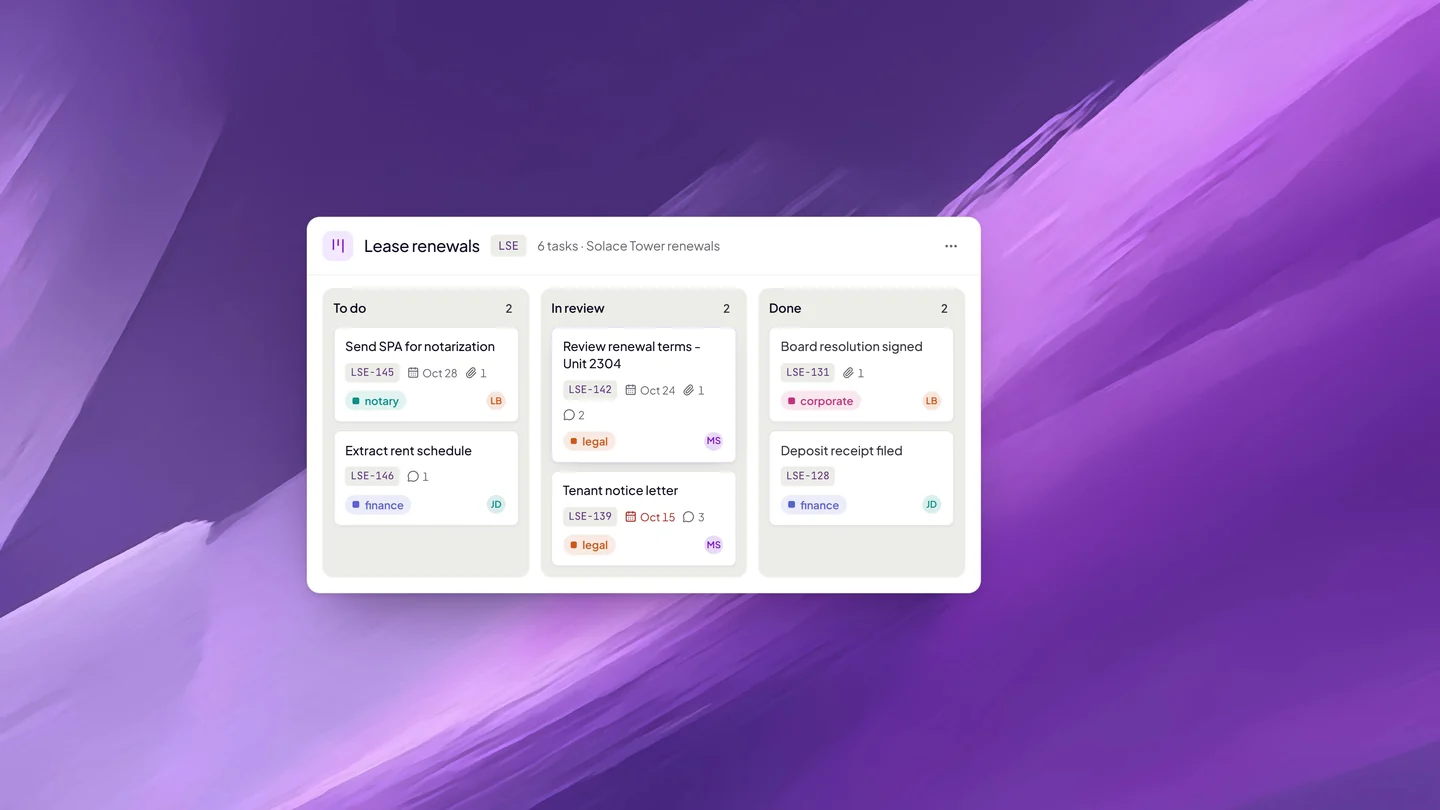
A task board holds the renewal work, with linked files, assignees, and due dates. Lex, the AI inside Twala, drafts the renewal from the old lease and your template and proposes its edits for you to apply or dismiss. The new lease goes out for eSignature, and if it needs notarization, an Electronic Notary Public (ENP) can notarize it on Twala without anyone printing a page. For questions too specific for a field, such as what a lease says about subletting, ask Lex: it answers from the file and names the document it used.
We follow one document through every stage in From draft to notarized, and Meet Lex covers the AI that does the drafting and answering.
Private by design
Contracts are full of names, amounts, and terms that should stay inside the company. Lex runs privately, under Twala’s own cloud account, and no user data is ever used to train the AI. AI search is opt-in for each file, and Lex answers only from files you can open; on a team, members see only what is shared with them. Every connection to Twala uses HTTPS, and sensitive fields such as bank details are encrypted by the application before they are stored. The security page lists the rest of the controls.
Which plans include it
Data extraction comes with Twala’s paid plans: 50 extractions a month (600 a year) on Professional, which starts at ₱990 a month, 200 a month (2,000 a year) on Business, 400 a month (4,800 a year) on Business Plus, and a custom allowance on Enterprise. The free Personal plan doesn’t include it. See pricing for the full comparison.
Frequently asked questions
How many fields can I extract at once?
Up to 30, each typed as text, number, date, currency, yes or no, or a list.
What if a value comes back wrong?
Each value shows its confidence, so you know where to look first, and you can correct any value in the results before you download.
Is my data used to train the AI?
No. No user data is ever used to train the AI, and Lex runs privately under Twala’s own cloud account.
Can I reuse the same fields on the next document?
Yes. Save them as a template and pick it the next time you extract.
If you have a folder of contracts nobody wants to read twice, start with a Twala account, or talk to us about setting up templates for your team. And if those contracts still need notarizing, our complete guide to eNotarization in the Philippines explains how that works now.